
Resolution is the first spec anyone looks at and the one most likely to send you the wrong way. The temptation is simple: 4K has more pixels than 1440p, so more must be better. But a monitor is not a TV. You sit sixty centimetres from it and read text for eight hours, and what determines comfort is not the raw pixel count but how those pixels are spread across the panel and how well your operating system copes. We have run both resolutions as daily drivers on Windows and macOS on 24, 27 and 32-inch panels.
4K vs 1440p monitor home office: the short answer
Buy 1440p if you are on Windows, working at 27 inches or smaller, and would rather spend the difference on a monitor arm, a better chair or a decent webcam. It is sharp enough that most people never think about pixels again, and it is cheaper and easier on your laptop.
Buy 4K if you are on a Mac, buying a 32-inch screen, reading or editing text for most of the day, or doing photo or video work. The extra sharpness is real and worth paying for on a screen you stare at for two thousand hours a year.
What the numbers mean
1440p (QHD) is 2560 × 1440 pixels, about 3.7 million. 4K UHD is 3840 × 2160, about 8.3 million, roughly 2.25 times as many. Your graphics hardware has more than twice the work to do, and the extra pixels only look sharper if they are packed tightly enough.
Pixel density is the real metric
A 27-inch 1440p monitor is roughly 109 PPI; a 27-inch 4K is about 163 PPI; a 32-inch 4K is about 138 PPI; a 24-inch 1440p is a crisp 122 PPI; and a 27-inch 1080p is a rough 82 PPI. Below about 100 PPI you can see individual pixels; 100–130 PPI gives clean text at normal distance; above 150 PPI is print-like.
Text sharpness over an eight-hour day
A 27-inch 1440p monitor is not blurry, and millions of people work on one without a second thought. Put a 27-inch 4K next to it and the difference is visible: smooth curves, thin fonts staying thin, small text legible. If you write, edit, code or read documents most of the day, sharper text is the whole product. If you mostly live in spreadsheets, browsers and video calls, 1440p is sufficient. The benefit also shrinks with distance: the closer you sit, the more 4K earns its price.
Screen size changes the answer
24 inches: 1440p wins outright
1440p gives about 122 PPI, sharp and usable at 100% scaling. 4K at 24 inches exceeds 180 PPI and forces scaling, so you pay for pixels you then throw away.
27 inches: the crossover point
This is where the debate lives. 1440p at 109 PPI is the value sweet spot with no scaling needed on Windows. 4K at 163 PPI is noticeably crisper but usually needs scaling. On macOS, 4K at 27 inches is clearly better; on Windows, 1440p is the pragmatic choice unless text quality is central to your job.
32 inches: 4K or don’t bother
At 32 inches, 1440p drops to about 93 PPI and looks soft. 4K lands at about 138 PPI and is sharp. If a 32-inch 4K is out of budget, buy a 27-inch 1440p instead, not a 32-inch 1440p.
Scaling: the catch nobody mentions
At 163 PPI on a 27-inch panel, Windows at 100% scaling makes text tiny, so you scale to 150%. That looks superb when it works, and macOS handles it beautifully, which is the strongest argument for 4K on a Mac. Windows is better than its reputation, but some older business software and installers still produce blurry text at 150%, which is why 1440p at 27 inches, needing no scaling, remains an easy Windows recommendation. A 4K panel at 150% gives the same usable desktop space as 1440p, just sharper: you are buying quality, not room.
What 4K demands from your laptop
You need HDMI 2.0 or later, DisplayPort 1.2 or later, or USB-C with DisplayPort Alt Mode; older HDMI 1.4 ports cap 4K at 30Hz. For one-cable docking look for USB-C power delivery of at least 65W, or 90W for 15–16-inch laptops. Integrated graphics handle a single 4K display for office work; two 4K displays or heavy creative work want discrete graphics.
4K vs 1440p at a glance
| 1440p (2560×1440) | 4K (3840×2160) |
PPI at 27 inches | 109, clean not crisp | 163, print-like |
PPI at 32 inches | 93, visibly soft | 138, sharp |
Scaling needed | None on Windows at 27 inches | Usually 150% at 27 inches |
Best for | Windows, spreadsheets, general work | macOS, text work, photo and video |
Hardware demands | Modest | HDMI 2.0 / DP 1.2 / USB-C |
Typical UK price, 27 inch | Around £180–£350 | Around £300–£600 |
Verdict | The value pick | The comfort pick |
UK prices, September 2026
On Amazon UK a 27-inch 1440p USB-C monitor such as the Dell 27 Plus S2725DC is £237, while the LG 27UP850-W (4K, USB-C) is around £452 and the Dell U2723QE (4K, IPS Black, USB-C dock) is £550. The premium for 4K at the same size is often £100–£300, still modest over five-plus years of use.
Our picks
Best 4K overall: Dell U2723QE
A 27-inch 4K IPS Black panel with excellent contrast, 90W USB-C power delivery and a built-in hub that makes it the centre of a desk. One cable to the laptop and everything else stays plugged into the monitor. See our Dell U2723QE review.

Best value 4K: LG 27UP850-W
The sensible way into 4K: 27 inches, good colour coverage, USB-C with 96W power delivery. Its Amazon UK price has risen to around £452 with limited stock (see our LG review), so compare against the Dell before buying.

Best 1440p: a 27-inch USB-C IPS panel
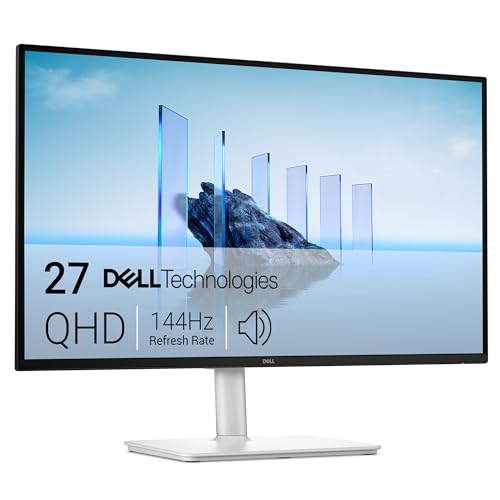
If 1440p is right for you, prioritise USB-C docking and a height-adjustable stand. The Dell 27 Plus S2725DC (QHD, 144Hz, IPS, USB-C) is £237, rated 4.4 stars from 199 ratings.

Buy 1440p if
- You work on Windows and want no scaling fiddling.
- You are buying a 24 or 27-inch monitor.
- Your day is spreadsheets, browsers, dashboards and calls.
- You would rather spend the difference on an arm, chair or webcam.
- You run an older laptop or modest integrated graphics.
Buy 4K if
- You work on a Mac.
- You are buying a 32-inch screen.
- You read, write, edit or code for most of the day.
- You do photo or video work.
- You sit close to your monitor.
- You plan to keep it five years or more.
The verdict
Size and operating system decide this more than budget does. At 24 inches, buy 1440p. At 32 inches, buy 4K. At 27 inches, buy 1440p on Windows unless text is your livelihood, and 4K on macOS every time. If you are genuinely undecided at 27 inches with the budget, go 4K. Whichever you choose, spend on USB-C docking before you spend on pixels: single-cable working changes your desk more than resolution ever will.