Going from one screen to two is the single biggest productivity upgrade most home workers can make, and it costs far less than a new laptop. But the best dual monitor setup for productivity is not simply ‘two of the same monitor bolted to a desk’. The right configuration depends on what you actually do all day — whether you live in spreadsheets, write code, juggle video calls, or edit photos.
This guide covers the configurations we have actually built and lived with, the hardware that makes them work, and the mistakes that quietly sabotage a two-screen desk. UK prices are included throughout, and every product is flagged with an affiliate-link placeholder for you to check current pricing.
Why dual monitors beat one big screen for most work
An ultrawide is gorgeous, but two separate panels give you something an ultrawide cannot: hard edges. You can slam a window to the inner edge of each screen and it snaps cleanly, you can put a full-screen video call on one display and your notes on the other, and you get two physical bezels that act as natural focus boundaries. Research consistently shows multi-monitor users complete window-heavy tasks faster, and in our own experience the productivity jump is most obvious for anyone copying between two documents — accountants, analysts, writers, developers.
The best dual monitor setup depends on your work
1. The matched pair (best all-rounder)
Two identical monitors, side by side, both at eye level on arms. This is the configuration we recommend to most people because it is the most flexible and the easiest on the eyes — identical panels mean identical colour, brightness and height, so your eyes are not constantly readjusting as they move between screens.
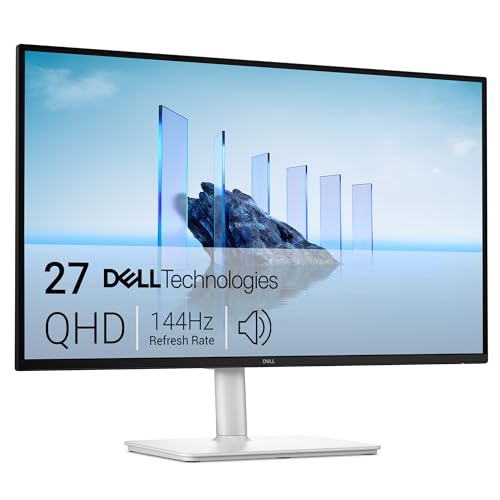
Our pick for the matched pair is a 27-inch 1440p IPS panel. It is the sweet spot: sharp enough to fit a lot on screen, big enough to be comfortable, and cheap enough to buy two. Two good 27-inch 1440p monitors cost around £300-£440 the pair in the UK.
- Best for: General office work, finance, admin, customer support, writing.
- Buy: Two matched 27-inch 1440p IPS monitors [Affiliate link to 27-inch 1440p IPS Monitor on Amazon UK].
- Watch out for: Buying two of a model with a flimsy included stand — you will want arms anyway.
2. Primary + secondary (the mismatched setup)
One larger, higher-quality main monitor for the work you focus on, plus a smaller or cheaper second screen for reference material, chat, email and dashboards. This is the most cost-effective way to go dual because your money concentrates on the screen you stare at most.
A common and excellent version: a 27-inch 4K USB-C monitor as the primary (single-cable laptop connection) with a 24-inch 1080p panel alongside for Slack, Teams and your calendar. The mismatch in resolution is barely noticeable once the secondary screen is doing low-stakes work.
- Best for: Hybrid workers, anyone with a laptop, people who want one great screen plus overflow space.
- Buy: 27-inch 4K USB-C primary [Affiliate link to 27-inch 4K USB-C Monitor on Amazon UK] + 24-inch 1080p secondary [Affiliate link to 24-inch 1080p Monitor on Amazon UK].
- Watch out for: Mismatched stand heights — fix this with a dual arm so both tops align.
3. The vertical second screen (best for coders and writers)
One monitor landscape, one rotated 90 degrees into portrait. The vertical screen is transformative for anything long and narrow: code, logs, legal documents, long articles, social feeds, chat. You see far more lines at once and scroll far less. Almost every monitor arm supports rotation, and Windows and macOS both handle a rotated display natively.
- Best for: Developers, writers, editors, lawyers, anyone reading long documents.
- Buy: Any IPS monitor on a rotating arm [Affiliate link to Single Monitor Arm with Rotation on Amazon UK].
- Watch out for: VA panels look washed out at the extreme viewing angles a portrait screen creates — choose IPS for the vertical display.
4. The stacked setup (small desks)
Where desk width is tight, stack a second monitor above the primary on a vertical dual arm. Your main screen sits at eye level and the upper screen holds reference material you glance up at. It is not as comfortable for all-day work on the top screen, but for a small desk it keeps two displays in play without sprawling sideways.
The hardware that makes a dual setup work
Monitor arms: the upgrade people skip and regret
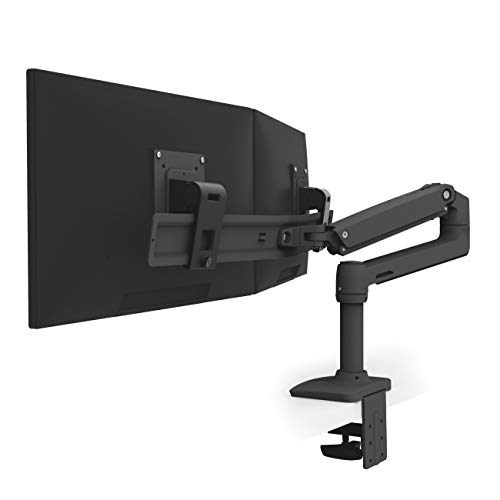
Included monitor stands are the enemy of a good dual setup. They are different heights, they eat desk depth, and they make alignment fiddly. A dual monitor arm fixes all of it: both screens at matched eye level, tilted and angled exactly how you want, and the desk surface underneath freed up.
| Arm type | Best for | Approx UK price |
| Dual arm, side by side | Matched pairs | £90-£170 |
| Dual arm, stacked | Small desks | £90-£150 |
| Two single arms | Mismatched sizes/weights | £100-£240 |
| Heavy-duty single x2 | Large/heavy panels | £160-£200 each |
For two same-size, similar-weight monitors, a single dual arm is tidiest [Affiliate link to Dual Monitor Arm on Amazon UK]. For two very different monitors — say a heavy 32-inch and a light 24-inch — two independent single arms give you more freedom and a better weight match.
Connections: how to actually plug two monitors in
This is where dual setups go wrong. Check your laptop or PC can physically drive two external displays before you buy:
- Laptop with one USB-C/Thunderbolt port: A USB-C dock or a daisy-chainable USB-C monitor is the cleanest route. Confirm your laptop supports DisplayPort Alt Mode.
- Laptop with HDMI + USB-C: You can often run one screen off each port directly — the cheapest option.
- Desktop PC: Check the graphics card has two spare outputs (it almost always does).
- MacBook Air (M-series base chips): Historically limited to one external display on older models — verify your exact model supports two before buying, or use a DisplayLink dock.
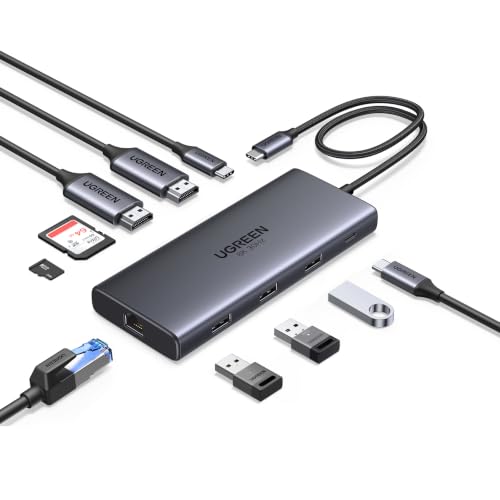
A good USB-C docking station turns a single laptop cable into power, two monitors, ethernet and USB in one connector [Affiliate link to USB-C Docking Station on Amazon UK]. It is the unsung hero of a clean dual-monitor desk.
Getting the ergonomics right
Two screens double the chance of getting your posture wrong. The rules:
1. Top of each screen at or just below eye level. This keeps your neck neutral. Arms make it effortless.
2. Primary screen dead ahead if you use one screen far more than the other. Centre the screen you look at most, not the gap between them.
3. Equal distance — both screens roughly an arm’s length away, angled slightly inward to form a gentle arc so you are not turning your neck.
4. Match the brightness of both panels to your room so your eyes are not adjusting every time they move across.
If you split your time evenly between both screens, centre the gap between them and angle each inward. If one is clearly primary, put that one straight ahead and let the secondary sit off to the side.
Common dual-monitor mistakes
- Buying two screens your computer cannot drive. Always confirm outputs first.
- Leaving them on the included stands. Mismatched heights ruin the ergonomics — use arms.
- Mismatched resolutions you didn’t plan for. A 4K and a 1080p side by side means UI elements jump in size as you drag windows across. Fine if expected, jarring if not.
- Ignoring cable management. Two monitors means more cables — route them through the arm channels and a desk grommet.
- Forgetting the second screen needs good viewing angles. Cheap VA or TN panels look poor off-axis, which a side or portrait screen always is.
Our recommended setups by budget
| Budget | Setup | What you get |
| Around £350 | Mismatched: one 27in 1440p + reuse an old monitor + dual arm | Big productivity jump on a tight budget |
| Around £550 | Matched pair of 27in 1440p IPS + dual arm | The all-rounder we recommend most |
| Around £750 | 27in 4K USB-C primary + 24in 1080p vertical + two arms + dock | Single-cable, flexible, coder-friendly |
| £1000+ | Two 27in 4K IPS + premium arms + Thunderbolt dock | Colour-matched, premium, future-proof |
The verdict
For most people, the best dual monitor setup for productivity is a matched pair of 27-inch 1440p IPS monitors on a dual arm, fed by a USB-C dock. It is comfortable, flexible, and the resolution-and-size sweet spot for office work. If your budget is tight, start with a primary-plus-secondary mismatched setup and upgrade the second screen later — the productivity gain arrives the moment you have two screens, not when they match.
Whichever route you take, spend on the arm. It is the cheapest part of the setup and the one that determines whether your dual-monitor desk is a joy or a neck-ache.