If you have a Mac and want a low-profile premium keyboard for a working-from-home desk, two keyboards keep coming up: the Logitech MX Keys S and the Apple Magic Keyboard with Numeric Keypad. They look superficially similar and target the same desk, but they are not the same keyboard, and prices have moved: on Amazon UK (September 2026) the MX Keys S is £84.99 in Graphite (rated 4.6 stars from 827 ratings) while the Magic Keyboard with Numeric Keypad is £113.97 (4.8 stars from 64 ratings). The Touch ID version is around £170–£175.
Short version: buy the MX Keys S if you cross between two computers, want a longer battery in practice, or care about per-application key remapping. Buy the Apple Magic Keyboard if you live entirely in macOS and value a snappier click, perfect Mac integration and a more compact footprint.
What you are choosing between
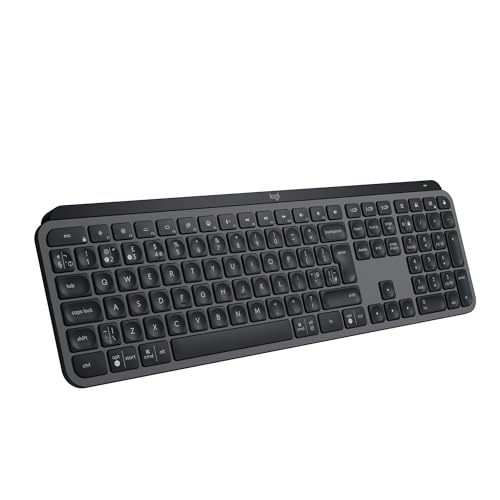
The Logitech MX Keys S is a full-size low-profile keyboard with a number pad, scissor switches, USB-C charging, smart proximity backlight and triple-device pairing over Bluetooth or Logi Bolt.

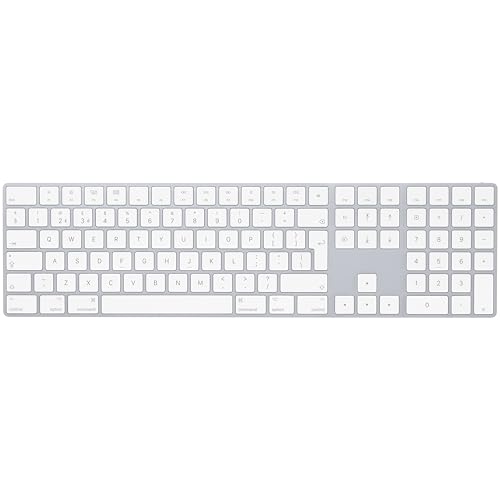
The Apple Magic Keyboard with Numeric Keypad is a full-size low-profile keyboard with a number pad, scissor switches, USB-C charging, no backlight and Bluetooth pairing to one Mac at a time. A Touch ID variant exists for Apple Silicon Macs.
Typing feel
The Magic Keyboard has a snappier click with slightly shorter travel (around 1mm versus 1.8mm), which feels precise to some and tiring to others. The MX Keys S has a softer, deeper feel with dished keys that make key centres easy to find, and most people adapt within a day or two and prefer it for long sessions. The Magic Keyboard is the louder of the two; the MX Keys S is duller, lower-pitched and quieter into a video-call mic.
Multi-device pairing
This is the biggest functional difference. The MX Keys S pairs to three devices at once and switches between them in about half a second; we use one channel for a work laptop, one for a personal desktop and one for an iPad. The Magic Keyboard pairs to one device at a time, and moving it means forgetting the pairing and re-pairing. If you have one Mac only, this is irrelevant; with any cross-device workflow the MX Keys S wins by a wide margin.
Backlight
The MX Keys S has a smart proximity-sensor backlight that lights the keys as your hands approach, with three manual brightness levels. The Magic Keyboard has no backlight at all, which becomes noticeable if you work in low light or take evening calls without the room lights on.
Battery and charging
Both charge over USB-C in about 90 minutes. Apple wins on standby battery, roughly a month with no backlight to power, while the MX Keys S goes around five months in smart-backlight auto mode and needs more frequent charging at full manual brightness. Both are fine in real use.
Touch ID: the Magic Keyboard’s secret weapon
The Touch ID model has a fingerprint sensor for macOS authentication, App Store purchases and Apple Pay on Apple Silicon Macs, which saves typing your password constantly. It is the only option in this price band with biometrics, and at around £170–£175 it costs roughly £90 more than the MX Keys S.
Software and customisation
The MX Keys S works with Logi Options+, which offers per-application key remapping, Logi Flow and firmware updates. Per-application remapping is genuinely useful: the same F-key can do different things in Slack, Photoshop and Chrome. The Magic Keyboard has no companion app, only what macOS System Settings offers.
Build quality and look
Both feel premium. The Magic Keyboard is aluminium top and bottom and feels denser; the MX Keys S is plastic top with a metal-finish deck, though the difference disappears in daily use. The Magic Keyboard is slightly more compact (418mm wide vs 433mm) and is the cleaner match for a white or silver Apple setup.
Price and value
With the MX Keys S at £84.99 and the Magic Keyboard with Numeric Keypad at £113.97 on Amazon UK, the Logitech now costs about £29 less and adds multi-device pairing, a backlight and software. If you are buying the Magic Keyboard for Touch ID, the premium is reasonable; for any other reason the MX Keys S is better value.
Quick decision matrix
Buy the MX Keys S if you:
- use more than one computer
- sometimes work in low light
- want per-application key remapping
- take a lot of video calls and want a quieter keyboard
- also use a Logitech MX Master mouse and want Logi Flow
Buy the Apple Magic Keyboard if you:
- have a single Apple Silicon Mac and want Touch ID
- strongly prefer the snappier Magic Keyboard click
- want the most compact footprint and cleanest aluminium look
- use only macOS and never want a companion app
What about the Magic Keyboard for iPad?
That is a different product: a magnetic case with a trackpad, not a desktop keyboard. If you want one keyboard for a Mac and an iPad, the MX Keys S’s Bluetooth pairing handles both.
Final verdict
For a working-from-home setup with any cross-device work, low-light use or desire for per-application customisation, the Logitech MX Keys S is the more flexible, better-featured and now cheaper keyboard. For a Mac-only setup where Touch ID matters and you prefer the Magic Keyboard click, the Apple keyboard is a pleasant and defensible alternative. The right answer depends on the shape of your home office, not on which is technically superior.
Related reading
- Logitech MX Keys S Review: The Best Home Office Keyboard?
- Logitech MX Master 3S Review: Still the King in 2026
- 5 Best Ergonomic Keyboards for Working From Home in 2026
- Keychron K2 Review: Best Mechanical Keyboard for Office
- Best Keyboard and Mouse Combos for Home Office
- How to Choose an Ergonomic Keyboard: The Complete UK Guide