A proper monitor buying guide home office buyers can actually act on has to start with the boring truth: the monitor on your desk has more effect on how a working day feels than almost any other piece of kit. You stare at it for eight hours, it sets the height of your neck, it sets how many windows you can keep in view, and it sets whether the people on the other end of your Teams call see you looking like you have a halo or a shadow. Get the monitor wrong and a £40 desk lamp will not save you.
We have tested forty-plus monitors across the WFHKit office in the last two years, ranging from a £109 AOC office panel to a £1,600 LG UltraFine 5K. This guide pulls the lessons we keep going back to, in the order a UK home-office buyer actually needs them: pick a size for the desk, pick a resolution to match, then pick a panel type, then sort out the inputs and ergonomics. We have included our short-list picks in three budget tiers at the end, plus the mistakes we see UK readers make most often.
Quick verdict: the monitor most home-office buyers should buy in 2026
Short version, before the detail:
- If you have a 120–140 cm desk and one laptop: a 27-inch 4K IPS monitor with USB-C 90W power delivery. Around £450–£600 in the UK. Examples we like: Dell U2723QE, LG 27UP850-W.
- If you have a 140 cm+ desk and want side-by-side windows without a second screen: a 32-inch 4K IPS, £550–£800. Example: Dell U3223QE.
- If you are on a strict budget under £250: a 27-inch 1440p IPS like the AOC Q27P2Q or LG 27QN600. Avoid 32-inch 1080p monitors entirely.
- If you are creative and money is no object: a 27-inch 5K like the Apple Studio Display or the new LG UltraFine 27U6K.
The rest of this guide explains how those answers fall out of four decisions: size, resolution, panel type, and inputs. Get those right and you will be happy for five years. Get one wrong and you will be back on Amazon UK within six months, which is exactly the cycle our [Affiliate link to Best Monitors for Working From Home roundup] is meant to break.
Decision 1: how big should your monitor be?
Size is the first thing to lock in because everything else follows from it. The two numbers that matter are diagonal screen size (in inches) and the desk depth you actually have (in centimetres). UK home-office desks are almost always shallower than American ones — IKEA’s most popular tops sell at 60 cm and 75 cm deep — and that single number rules out a surprising amount of internet advice.
How far away from the screen will you sit?
Measure the distance from where the back of the screen will sit to where your eyes will be. On a 60 cm desk with the monitor pushed all the way back and your chair pulled to the front edge, that is usually 50–60 cm. On a 75 cm desk it is 65–80 cm. On a 100 cm L-shape with a monitor arm pushing the screen to the back of the return, it can be 90 cm+.
Rule of thumb for 4K monitors: 27-inch is comfortable at 50–70 cm. 32-inch is comfortable at 70–90 cm. 24-inch is comfortable below 50 cm but you will not get the pixel benefit of 4K at that size, so skip it for a 4K purchase.
Common UK desk sizes and what fits
| Desk | Best single monitor | Best dual setup |
| IKEA LINNMON 100 cm | 24-inch 1440p, or 27-inch 1440p pushed back | Two 24-inch 1080p |
| IKEA BEKANT 120 cm | 27-inch 4K | 24-inch + 27-inch |
| FlexiSpot 140 cm | 27-inch 4K or 32-inch 4K (with arm) | Two 27-inch 1440p |
| IKEA IDASEN 160 cm | 32-inch 4K | 27-inch + 27-inch (4K) |
| L-shape return 180 cm+ | 34-inch ultrawide or 32-inch 4K | 32-inch + 24-inch portrait |
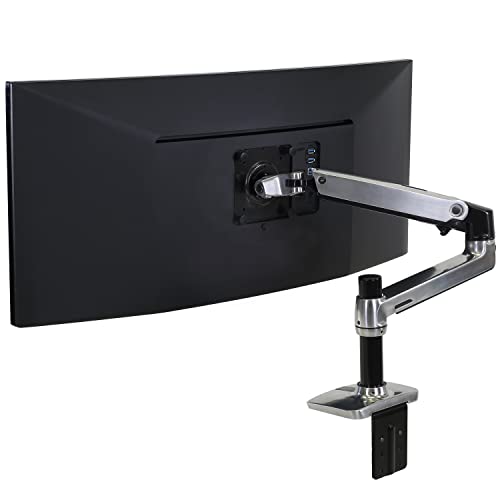
That table assumes a monitor arm if depth is below 70 cm. The default stand on most monitors adds 20–25 cm of forward intrusion onto the desk, and that is what turns a 60 cm desk into a 40 cm working surface. Our [Affiliate link to Best Monitor Arms and Mounts roundup] is the cheapest upgrade you can make to a small UK desk — we rate the AmazonBasics single arm at around £80 as the best value, and the Ergotron LX at around £170 as the long-term pick.
Why 32-inch 1080p is the trap to avoid
The cheapest 32-inch monitors on Amazon UK are 1080p (1920×1080). At that size, the pixel density is about 69 PPI. Text looks fuzzy, the operating system tries to scale it but only to 100%, and you spend a year telling yourself it is fine before quietly replacing it. A 27-inch 1080p panel is borderline acceptable; 32-inch 1080p is not. If the budget is £150–£200, go 24-inch 1080p or 27-inch 1440p, not 32-inch 1080p.
Decision 2: what resolution do you actually need?
Resolution is the number of pixels the screen draws — width × height. The higher the number, the sharper the text and the more screen real estate you get at any given scaling. For a UK home office in 2026 there are really only three resolutions worth considering, plus one luxury option.
| Resolution | Pixels | Best for | Typical UK price (2026) | Notes |
| 1080p (Full HD) | 1920×1080 | 24-inch panels only | £100–£180 | Fine for one screen on a budget. Avoid above 24-inch. |
| 1440p (QHD) | 2560×1440 | 27-inch sweet spot | £180–£350 | Best value resolution for WFH in 2026. |
| 4K (UHD) | 3840×2160 | 27-inch and 32-inch | £350–£800 | Sharper text, more work area at 150% scale. |
| 5K | 5120×2880 | 27-inch creative work | £900–£1,600 | Mac users only, really. macOS native scaling at 2x. |
Why 1440p is the best-value resolution in the UK in 2026
1440p sits in the sweet spot: 78% more pixels than 1080p, almost no GPU overhead, runs natively on USB-C laptop docks without issue, and the panels are mature enough that even the £200 LG 27QN600 looks good. If you are picking one monitor for a £500 home office setup, 27-inch 1440p IPS is what we would buy. Our [Affiliate link to LG 27QN600 review] goes deeper on the budget pick.
When 4K is worth the extra £200
4K is worth paying for if you do any of the following: read text for a living (writing, code, legal, accounting), edit photos or video, want crisper Teams call backgrounds, or use a Mac (macOS handles 4K scaling better than Windows). For a 27-inch panel, 4K gives you ~163 PPI — close enough to retina territory that the screen stops looking like a screen and starts looking like printed paper. Our editor will not go back to 1440p; the writers on £1,200 setups can take or leave it.
Resolutions to skip in 2026
- 1080p above 24-inch — text looks soft, scaling is a mess.
- 1440p above 32-inch — pixel density drops below 1080p-at-27-inch territory.
- “8K” — there is no real-world benefit at desk distance and the panels are still £4,000+.
- “Curved 1080p” — the curve makes it look more premium than it is. Same fuzziness as flat 1080p.
Decision 3: which panel type — IPS, VA, OLED or TN?
Panel type controls colour, viewing angles, contrast and how the screen handles fast motion. For a home-office monitor used eight hours a day, the answer is almost always IPS. The other types have niches.
| Panel | Strengths | Weaknesses | Best for home office? |
| IPS | Best colour, widest viewing angles, even brightness | Modest contrast, slight “IPS glow” in dark rooms | Yes — default pick |
| IPS Black | IPS colour with much deeper blacks (2,000:1 contrast) | Costs £50–£100 more | Yes — best pick if budget allows |
| VA | Excellent contrast, deep blacks, cheap | Colour shifts off-axis, slower motion, text fringing | Sometimes — fine for spreadsheets and video, weaker for editing |
| OLED | Perfect blacks, instant response, vivid colour | Burn-in risk with static UI, dim in bright rooms, £900+ | No — burn-in risk for office UI use |
| TN | Cheap, fast motion | Awful viewing angles, washed-out colour | No — avoid |
IPS Black: the panel upgrade worth paying for
Since 2022 LG Display and Dell have rolled out IPS Black panels — the same IPS technology with a chemistry change that pushes contrast from the usual 1,000:1 to about 2,000:1. In daily use it means blacks look black instead of dark grey, particularly in dark-mode IDEs and video calls. The Dell U2723QE and U3223QE are the obvious examples in the UK. If you can stretch the budget by £80–£150, IPS Black is the upgrade we recommend most often. Our [Affiliate link to Dell U2723QE review] covers it in detail.
Why OLED is still the wrong call for office use in 2026
OLED monitors look stunning in shop windows. The trouble is the static elements of an office UI — taskbar, dock, browser tabs, Teams sidebar — are exactly the kind of unchanging bright pixels that age OLED panels unevenly. LG and Samsung have improved burn-in protection enormously, but every OLED monitor warranty still excludes burn-in or requires you to run a daily refresh cycle. For an 8-hour productivity machine in 2026, IPS is still the safer purchase. Revisit OLED in 2028.
Decision 4: inputs, USB-C and the cable mess on your desk
The single most underrated feature on a 2026 home-office monitor is USB-C with Power Delivery (PD). One cable from your laptop carries video, sends keyboard/mouse data back through the monitor as a hub, and charges the laptop at 65–96 W. It replaces a docking station, a power brick and three cables with one. If you use a laptop as your daily driver, do not buy a monitor without it.
How much USB-C power delivery do you actually need?
| Laptop class | PD needed | Examples |
| Ultrabook / MacBook Air | 60 W | MacBook Air M3, Dell XPS 13, ThinkPad X1 Nano |
| Mid-weight 14-inch | 65–90 W | MacBook Pro 14, ThinkPad T14, HP EliteBook 845 |
| Performance 16-inch | 90–100 W | MacBook Pro 16, Dell XPS 16, ThinkPad P16 |
| Gaming laptop | 140 W+ | Stay on the original brick — monitors do not deliver enough |
Most well-specced 2026 monitors deliver 65, 90 or 96 W. The Dell U2723QE delivers 90 W, which covers everything except gaming and high-end 16-inch workstations. If you have a MacBook Pro 16 with M4 Max, look for 96 W (LG 27UP850N-W) or use the monitor for video only and keep the original charger plugged in.
KVM switches: the feature people only appreciate after they have it
A KVM (keyboard-video-mouse) switch lets a single monitor connect to two computers via USB-C and HDMI, and switch between them with one button or by moving the mouse off-screen. If you have a work laptop and a personal laptop, this feature is transformative — no more swapping cables every day. Dell calls it Multi-Client KVM; LG calls it USB-C KVM. Worth £50 more on the sticker price if you have two machines.
Ports to check before you click buy
- USB-C with Power Delivery (DP-Alt mode, 65 W minimum, 90 W preferred).
- DisplayPort 1.4 — needed for 4K at 60 Hz over a single cable, or 1440p at 144 Hz.
- HDMI 2.0 minimum (HDMI 2.1 for 4K at 120 Hz).
- USB-A downstream ports — at least two, ideally on the side or front rather than the back.
- Ethernet RJ45 passthrough — only on premium Dell and LG models; useful if your Wi-Fi is unreliable.
- 3.5 mm audio out — for desk speakers or headphones plugged into the back of the screen.
Decision 5: refresh rate, response time and the gaming-spec trap
Refresh rate (Hz) and response time (ms) matter enormously for gaming and almost not at all for office work. The 240 Hz curved gaming panel on the front page of Amazon UK is not a better office monitor than a 60 Hz IPS panel. It is a different tool.
What refresh rate does for office work
60 Hz is fine for documents, spreadsheets, code and video calls. 75–100 Hz makes scrolling, window dragging and cursor motion feel noticeably smoother — and most modern IPS monitors support it without a price premium. 120–144 Hz is a real upgrade for any work involving moving content (presentations, animation, video preview) but you will not feel it reading a Word doc. Above 144 Hz is purely for competitive gaming.
What to ignore in monitor spec sheets
- “1 ms MPRT” response time — marketing number, the actual GtG response is 4–6 ms on almost any IPS panel.
- “DisplayHDR 400” — does not deliver meaningful HDR. Look for DisplayHDR 600+ or skip the HDR pitch entirely.
- “99% sRGB” — meaningless without a hardware-calibrated factory report. Trust reviewer measurements (rtings.com, tftcentral.co.uk).
- “Gaming” or “Curved” branding — irrelevant to office use, sometimes worse (curve interferes with windowed productivity work).
Decision 6: ergonomics, stands and monitor arms
The single biggest neck-pain cause we see in WFHKit reader emails is a monitor whose top edge is below eye level. The fix is usually free — raise the stand to maximum height — but sometimes the stand simply does not go high enough. For UK office heights (most desks are 73–76 cm and most home-office chairs put eye level at about 110–120 cm), you want a monitor that can put its top edge at 115 cm above the floor or higher.
What a good monitor stand should do
- Height adjustment of at least 11 cm (130 mm).
- Tilt of -5° to +20°.
- Swivel of ±30° each way (left-right).
- Pivot to portrait — useful if you read long documents or code.
- VESA 100×100 mount holes underneath, so you can switch to a monitor arm later.
When to ditch the stand for a monitor arm
Monitor arms are not a luxury — they buy you 20–25 cm of desk depth, raise the screen above the desk and let you tuck a keyboard underneath. On a 60 cm IKEA LINNMON or BEKANT, a monitor arm is the difference between a desk you can work on and a desk you cannot. Budget £70–£100 for a single AmazonBasics or Huanuo arm, £150–£200 for a 10-year Ergotron LX. Our [Affiliate link to Ergotron LX Monitor Arm review] covers the premium pick.
Decision 7: brightness, glare and UK living-room offices
UK home offices have a particular brightness problem: a south-facing window throws strong glare onto the screen from 11 am to 3 pm in summer, and the same room is genuinely dark by 4 pm in December. A monitor needs to handle both ends of that range.
Brightness specs and what they mean
- 250 cd/m² (nits) — bare minimum, works in a curtained or north-facing room.
- 350 cd/m² — comfortable for most UK home offices.
- 400+ cd/m² — needed if you sit near a south-facing window and refuse to close blinds.
- Matte finish (anti-glare coating) — non-negotiable for UK conservatory or window-side desks.
Avoid glossy-finish monitors unless your room has full blackout blinds. Glossy panels look better in shops and worse in real UK living rooms. Apple Studio Display is the famous exception — it has the matte option for £350 more and it is worth it.
What about ultrawides?
A 34-inch 21:9 ultrawide is a real productivity tool for specific workflows: trading dashboards, video timelines, IDE + browser + Slack side-by-side without window-snapping. It is not a better all-rounder than a 27-inch 4K. The pixel height is the same as a 1440p (1440 px), the desk space required is closer to 80 cm wide, and Teams calls look stretched if you forget to crop. Buy ultrawide if you have a specific workflow that needs it; otherwise stick to 16:9.
If you do want ultrawide, the LG 34WP65C and Dell U3425WE are the panels we have tested most often. Our [Affiliate link to Best Ultrawide Monitors roundup] compares the current UK shortlist.
Our picks: the home office monitors we’d buy at each budget
Under £250 — Best budget pick
AOC Q27P2Q (27-inch, 1440p, IPS, 75 Hz, £199). Built-in USB-C with 65 W power delivery at this price is borderline unbelievable. We have used three of these in the WFHKit office for over a year and they have not skipped a frame. The only compromise is a slightly plasticky stand — fine for £200. [Affiliate link to AOC Q27P2Q on Amazon UK]
£250–£500 — Best mid-range pick
LG 27UP850N-W (27-inch, 4K, IPS, 96 W USB-C, £429). 96 W of power delivery covers any laptop short of a 16-inch MacBook Pro M4 Max. Colour is well-calibrated out of the box (we measured 96% sRGB on our test unit), the stand has proper height adjustment and pivot, and the matte finish handles UK conservatory glare without grumbling. [Affiliate link to LG 27UP850N-W on Amazon UK]
£500–£800 — Best premium pick
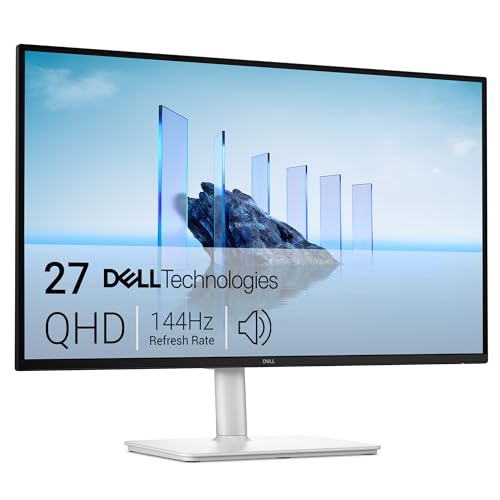
Dell U2723QE (27-inch, 4K, IPS Black, 90 W USB-C, KVM, £549). The single best home-office monitor in the UK in 2026 if you have a laptop and care about Teams call lighting. IPS Black blacks, 2,000:1 contrast, daisy-chain DisplayPort if you want to add a second screen later, and Dell’s premium 5-year warranty including a no-bright-pixel guarantee. Our [Affiliate link to Dell U2723QE review] is the long version. [Affiliate link to Dell U2723QE on Amazon UK]
£800+ — Best for creative work
Apple Studio Display (27-inch, 5K, IPS, USB-C, £1,499 with standard glass and tilt stand). Only worth it if you are on a Mac and the work justifies it — design, photo retouch, long-form writing. Built-in 12 MP webcam, six-speaker array and centre-stage mic make it a Teams-call upgrade on top of being a monitor. [Affiliate link to Apple Studio Display on Amazon UK]
Beyond £1,500 the options thin out — the LG UltraFine 27U6K is the closest 5K alternative for £1,599, and the Dell UP3221Q if you need a hardware-calibrated reference monitor at £2,800.
The mistakes UK home-office buyers make most often
1. Buying the biggest monitor the desk can fit
A 32-inch monitor on a 60 cm desk forces you to sit too close, scan your eyes left to right repeatedly, and crane your neck up. The correct answer is the smaller monitor at the right viewing distance, every time. If you want more pixels, go higher resolution at the same size.
2. Picking on refresh rate instead of resolution
Office productivity work is not bottlenecked by refresh rate. We have tested 144 Hz panels and 60 Hz panels side-by-side for code review and the productivity difference is zero. Resolution and panel quality are what your eyes will notice on day one.
3. Skipping USB-C to save £50
A non-USB-C 4K monitor at £350 sounds better than a USB-C 4K monitor at £400 until you realise you now also need a £180 docking station, a USB hub and a power brick. The single-cable USB-C monitor is almost always cheaper end-to-end. Do not skip it.
4. Buying refurbished office monitors from 2019
Refurbished Dell P2419H or HP EliteDisplay panels appear on Amazon UK for £109 and look like a steal. They are 1080p, 23–24-inch, no USB-C, IPS but only 250 nits and they have been in fluorescent-lit offices for five years. Backlight bleed and dead pixels are common. Avoid unless the budget is genuinely under £100.
5. Forgetting about the webcam, lighting and mic
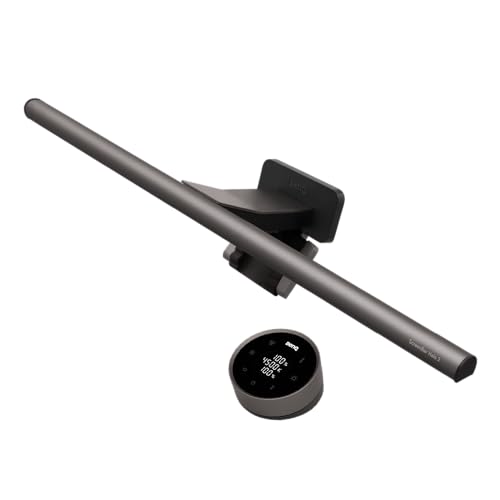
A bright window-bleached Teams call is not really a monitor problem, but the monitor is in the frame and a properly bright IPS panel makes a noticeable difference to how the camera exposes your face. Pair the monitor with a monitor light bar (we like the BenQ ScreenBar Halo — see our [Affiliate link to BenQ ScreenBar review]) and a key light, and your Teams calls will improve more than another £200 of monitor would do.
FAQs
Do I really need a 4K monitor for home office work?
No, but you will probably want one within 12 months. 1440p at 27-inch is genuinely fine; 4K at 27-inch is noticeably nicer for reading and Teams calls. The price gap has shrunk to about £150 — small enough that we now recommend 4K for any setup over £400.
Are curved monitors better for home offices?
Only on ultrawides (34-inch+). On a 27-inch or 32-inch 16:9 panel the curve is mostly cosmetic and can interfere with windowed work. Skip the curve unless you are buying ultrawide.
Two monitors or one bigger monitor?
For mixed work, two 27-inch monitors beat one 32-inch monitor — separate spaces for separate tasks, and you can put one in portrait for documents. For focused single-window work, one good 27-inch 4K beats two mediocre 1080p panels every time. Buy one good monitor first, then add a second if you actually need it.
How long should a home office monitor last?
Five to seven years is realistic for an IPS panel run eight hours a day. Backlights dim about 1% per 1,000 hours, so by year five a 350 nit monitor is closer to 280 nits — fine for most rooms. Buy with that horizon in mind and the £549 monitor works out at under £10 a month.
Is HDR worth paying for on an office monitor?
Not really. DisplayHDR 400 is not real HDR; DisplayHDR 600+ is, but the content (Netflix, Disney+) is the only thing that uses it and Windows handles HDR mode unreliably in 2026. If HDR is “free” on a monitor you would buy anyway, fine. Do not pay extra for it.
The bottom line — which monitor should you buy?
A monitor buying guide home office buyers can act on is really just an ordered checklist: pick a size from your desk depth, pick a resolution from the size, pick IPS (or IPS Black if budget allows), insist on USB-C with at least 65 W power delivery, raise the screen to eye level and skip the gaming spec sheet. Do that and you will not regret the purchase.
If you want a single answer for a typical UK home office in 2026, here it is: a 27-inch 4K IPS Black monitor with 90 W USB-C — the Dell U2723QE at around £549, or the LG 27UP850N-W at around £429. They are the monitors we recommend most often to readers, and the ones we have on our own desks. Pair one with a monitor arm and a light bar, and your workspace will feel completely different by Monday morning.