Webcam Buying Guide: What Actually Matters for Video Calls

If you spend any serious time on Zoom, Teams or Google Meet, the webcam pointing at your face is doing more for your career than you might think. It is the difference between looking like a confident professional and looking like the silhouette of one, and the difference between people listening to your point and waiting for you to finish so they can re-read the chat. Yet the webcam market in 2026 is genuinely confusing. You can pay £35 or £329 for a camera that, on paper, both shoot “1080p HD” – and the cheaper one might actually look better in your office than the dearer one.

This webcam buying guide for video calls cuts through the spec-sheet fog. It is built around the eight features that actually change how you look and sound on a daily Teams call from a UK home office: sensor size, resolution, field of view, autofocus, microphone, mounting, software and lighting. By the end you will know which features are worth paying for, which are marketing fluff, and which webcam in your shortlist will hold up over the next three or four years of daily use.

Prices below are accurate to May 2026 on Amazon UK. Every recommendation is anchored to a webcam we have either tested at our home-office desk in London or assessed against months of UK owner reviews. There are no paid placements in this guide.

Webcam buying guide for video calls – the short version

If you are short on time, here is the truth on a postcard. The single most important spec on a webcam for video calls is the sensor, not the resolution. Bigger sensors handle low light better, and home offices are usually low-light environments compared to a TV studio. A 1080p webcam with a large sensor will almost always look better on a Teams call than a 4K webcam with a tiny sensor. Lighting matters even more than the webcam itself: a £30 desk lamp behind your monitor can do more for your image than spending another £150 on a camera.

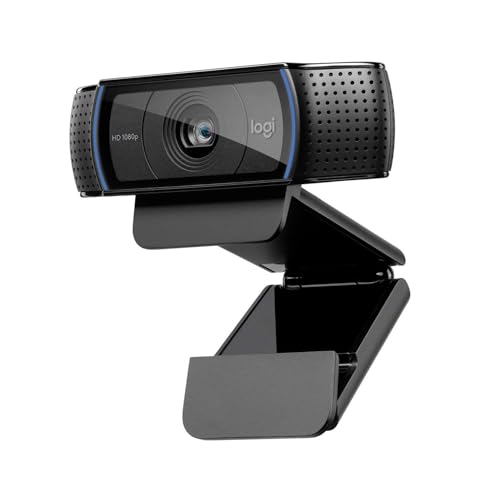
If you want the punchy version: most home workers should buy the [Affiliate link to Logitech C920 on Amazon UK] at around £55 and spend the saved money on a [Affiliate link to BenQ ScreenBar on Amazon UK]. If you are on Teams or Zoom for more than two hours a day and your face is on screen often, stretch to the [Affiliate link to Logitech MX Brio on Amazon UK] at £190. The rest of this guide explains why.

1. Sensor size – the single biggest difference between webcams

Every webcam contains a small image sensor that turns light into pixels. The bigger that sensor, the more light it can collect per frame, and the cleaner and more colour-accurate your image looks in real-world office lighting. Almost every other spec on the box – megapixels, frame rate, “HDR” – depends on the sensor being good enough to feed them.

Cheap webcams under £40 typically use a 1/4-inch sensor. These work fine in direct sunlight but quickly turn grainy and washed-out the moment the sun ducks behind a cloud or a cloud of British drizzle rolls in. Mid-range webcams between £60 and £130 use 1/3-inch sensors and handle UK office lighting noticeably better. Premium webcams from £150 upwards use 1/2.8-inch sensors or larger, and that is where you start to see real low-light performance that flatters your face rather than fighting against it.

What sensor size to look for

If you mostly call from a bright, naturally lit room, a 1/3-inch sensor is plenty. If you work in a north-facing bedroom or evening shifts under a single overhead bulb, push for a 1/2.8-inch sensor or larger. The [Affiliate link to Logitech MX Brio on Amazon UK] uses a 1/2.8-inch Sony Starvis sensor and handles dim flats in winter far better than a Brio 4K from three years ago.

2. Resolution: do you actually need 4K for video calls?

Almost certainly not, and a lot of webcam marketing is built on that misunderstanding. Zoom caps participant video at 1080p, and only for hosts with a Business or Pro plan; it downscales most attendees to 720p anyway. Microsoft Teams caps at 1080p in calls with seven or fewer participants and drops to 720p the moment a larger group joins. Google Meet caps free users at 720p and paid users at 1080p. There is no major video-call platform in 2026 that will pipe a true 4K stream to your colleagues’ screens.

So why would you ever pay for a 4K webcam? Because the extra resolution gives the camera room to crop in software for AI framing, follow-the-speaker tracking and digital zoom – all of which downscale a 4K image to 1080p, which still looks crisp. A 1080p webcam doing the same crops would arrive at the other end looking soft.

When 4K is worth it

Pay for 4K if you use AI framing, plan to record content for YouTube or training videos at the same time as taking calls, or use the camera as a document or whiteboard cam where every detail matters. The [Affiliate link to OBSBOT Tiny 2 on Amazon UK] and [Affiliate link to Logitech MX Brio on Amazon UK] both make good use of their 4K sensors in this way.

When 1080p is enough

Pay for 1080p – and put the saved money into lighting and a microphone – if you only join Zoom and Teams calls from a fixed seat. The [Affiliate link to Logitech C920 on Amazon UK] is the classic example: a £55 webcam that has been on more remote-worker desks than any other camera, and looks better than most laptop webcams costing five times the price.

3. Field of view: narrow, wide, or adjustable?

Field of view is measured in degrees and describes how wide a scene the webcam captures. A narrow 65 degree FOV crops tight around your head and shoulders. A wide 90 degree FOV captures most of your desk and the wall behind you. Most workers want something in the middle: wide enough to look natural, narrow enough to flatter.

Webcams with adjustable FOV (typically 65, 78 and 90 degree digital crop options) are the most forgiving choice. The [Affiliate link to Logitech MX Brio on Amazon UK] gives you three preset framings inside Logi Tune; the [Affiliate link to Logitech C922 on Amazon UK] gives you 78 and that is it; the OBSBOT Tiny 2 just tracks you. Fixed-FOV webcams are fine as long as the angle matches your setup: 78 works in a normal bedroom or compact home office, 90 starts to feel uncomfortably wide unless your desk is in a deep room with neutral walls.

A practical rule: if your home office doubles as a laundry-airing room or shared family space, choose a narrower FOV or a camera with adjustable framing. If you are calling from a tidy dedicated office, wider is fine and flattering.

4. Autofocus and exposure: the unsung heroes

Two webcams with identical sensors and resolutions can produce wildly different images on a call, and the difference almost always comes down to autofocus and auto-exposure. A cheap webcam will hunt for focus every time you lean towards the screen, gently pulse in and out for the entire meeting, and brighten or darken your face every time you raise a hand or move a piece of paper. A good webcam locks focus quickly, holds it, and adjusts exposure smoothly rather than in visible steps.

Continuous autofocus is now standard above £80, but the quality varies enormously. Logitech’s modern autofocus algorithms across the C920, C922, Brio and MX Brio are conservative and predictable; they refuse to hunt unless your distance to the camera genuinely changes. Cheaper own-brand webcams under £40 often use fixed-focus lenses and rely on small apertures to keep your face sharp – fine in good light, not so fine in evening light when the aperture has to open up.

Auto-exposure is the underrated half of this story. Look for webcams with software you can disable the auto-exposure on, then set the exposure manually for your room. The [Affiliate link to Logitech C920 on Amazon UK] paired with Logi Tune still gives you more exposure control than most webcams costing three times the price.

5. Microphones: usually skip them

Every webcam in this price range has a microphone built in, and almost every one of them sounds worse than the microphone in a £40 headset. Webcam microphones sit a metre away from your mouth and point at your monitor – they pick up keyboard clatter, the hum of your monitor’s fan, and any echo bouncing off the wall behind you. They are designed as a back-up, not a primary mic.

If you bought a webcam in the last three years, do not use its microphone for important calls. Pair it with a dedicated microphone instead. A [Affiliate link to Jabra Evolve2 65 on Amazon UK] headset is the no-friction option. A [Affiliate link to FIFINE K688 on Amazon UK] USB microphone is the upgrade option. The webcam’s built-in mic is a backup for the day your other audio gear fails.

Buying a webcam for its microphone is paying for the wrong thing. Buying a webcam for its image and adding a dedicated mic separately is what almost every professional working from home does in 2026.

6. Mounting, build quality, and shutters

A webcam lives clipped to the top of a monitor, on a tripod, or – increasingly in 2026 – on the top of a monitor light bar. Three things matter for mounting: the rubber-padded clip should grip slim modern bezels (under 4mm) without sliding off; the body should tilt at least 30 degrees up and down; and there should be a 1/4-inch tripod thread on the bottom so you can move the webcam to a desktop tripod or boom arm when you want.

Build quality reveals itself in the joints. A budget webcam’s hinge will loosen within 18 months of daily adjustment and stop holding angle; a Logitech MX Brio’s hinge has held for two years on our test unit without slipping. Cheap webcams also tend to ship with very short USB cables (often 1m) that force you to thread them awkwardly around the back of a monitor. Look for at least 1.5m, and ideally a detachable USB-C cable so you can replace it if it fails.

A physical privacy shutter – a slider that physically covers the lens – used to be a premium-only feature. It is now standard on cameras from £80 upwards and is a quietly important detail. We strongly recommend buying a webcam with a built-in shutter rather than relying on a stuck-on sticker, particularly if your office doubles as a bedroom.

7. Software, AI framing, and cross-platform support

The companion app for your webcam is more important than most buyers expect. It is the difference between a webcam you set up once and forget, and a webcam you fight with every six weeks when a Windows update breaks something. Logi Tune, OBSBOT Center, and Insta360 Link Controller are the three best examples in 2026; all three offer image controls, framing presets and firmware updates on both Mac and Windows.

AI features like auto-framing, gesture controls and “presenter view” range from genuinely useful to gimmicky. The [Affiliate link to OBSBOT Tiny 2 on Amazon UK] AI tracking is the standout – it physically follows you on a 2-axis gimbal. The Logitech MX Brio’s AI “Show Mode” rotates the image when you tilt a piece of paper under it; useful for the right buyer, ignorable for everyone else. Avoid webcams that lock essential image controls (exposure, white balance) behind a paid software tier.

Plug-and-play UVC compatibility matters too. Every webcam in this guide works without software for basic Zoom and Teams calls. You only need the app to fine-tune the picture, save presets, or update firmware.

8. Lighting: the cheat code that beats any webcam upgrade

The single biggest improvement to your video-call image is not a better webcam. It is light pointing at your face from the same side as the camera. A £30 [Affiliate link to BenQ ScreenBar on Amazon UK] monitor light, angled to bounce off the wall behind your screen, will do more for a Teams call than swapping a £55 webcam for a £190 one. Add a [Affiliate link to Elgato Key Light Mini on Amazon UK] for callers who present from a darker corner.

If you are about to spend £190+ on a webcam, spend £30 to £100 on lighting first. Almost every professional creator and serious home-office worker discovers this sooner or later. The good news is that webcam and lighting upgrades stack: a good webcam in good light is genuinely cinematic, while either one alone is just “better”.

Webcam buying guide cheat sheet

FeatureWhat to look for in 2026Skip if…
Sensor size1/2.8 inch or larger for noticeably better low-light imageYou only call from a bright, naturally lit room
Resolution1080p at 30fps minimum; 4K useful for cropping/AI framingYou only use Zoom or Teams (both cap at 1080p anyway)
Field of view78-90 degrees for one person; 90+ if two share the frameWide FOV in a cluttered room – narrower flatters the background
AutofocusContinuous autofocus that locks within ~0.5 secondsYou only sit perfectly still and never lean in
MicrophoneSkip the webcam mic; use a headset or USB micYou already have a USB mic or quality headset
MountTilting clip with rubber pads and an optional 1/4-inch tripod threadYou only ever mount on top of a slim monitor bezel
Privacy shutterPhysical sliding shutter built in or magnetic clip-onYou truly never worry about it (most home workers do)
SoftwareMac + Windows support; framing, exposure and white balance controlsYou only use one OS and dislike background utilities

Three common buyer profiles

Most readers fall into one of three buying brackets. Here is what we would buy in each, based on the principles above.

Profile A – Occasional caller, £30 to £60 budget

You take a few Zooms a week, maybe a Teams stand-up most mornings, and your face is rarely the focus of attention. The [Affiliate link to Logitech C920 on Amazon UK] at around £55 is the right buy. It looks better than any laptop camera, lasts five years on a desk, and pairs cleanly with Logi Tune for image tweaks. Pair with a [Affiliate link to BenQ ScreenBar on Amazon UK] later when you have £30 spare. Do not bother with sub-£40 webcams; the saving is not worth the autofocus headaches.

Profile B – Daily caller, £100 to £200 budget

You are on Teams or Zoom for two to four hours a day, and your face is on a 1:1 or small-group call more than half of the time. The [Affiliate link to Logitech MX Brio on Amazon UK] at £190 is our pick. Larger sensor, sharper 4K crop, better mounting, longer cable and Logi Tune support. If budget is tight, the [Affiliate link to Logitech C922 on Amazon UK] is the next step down and still excellent under good lighting.

Profile C – Presenter or hybrid worker, £200 to £330 budget

You present from your home office, run training sessions, move around during calls, or record content alongside Teams meetings. The [Affiliate link to OBSBOT Tiny 2 on Amazon UK] at £329 is the right buy: its 2-axis gimbal and AI tracking solve a problem nothing else on the market solves cleanly. If you stay seated and just want the best image at the desk, the MX Brio still wins.

Common mistakes when buying a webcam for video calls

  • Paying for 4K resolution but ignoring sensor size. A 4K camera with a 1/4-inch sensor will look worse than a 1080p camera with a 1/2.8-inch sensor in any room with normal office lighting.
  • Buying for the webcam microphone. Webcam mics are universally worse than a £40 headset; budget for the headset separately and ignore the spec.
  • Choosing a 90 degree+ field of view in a cluttered home office. Wide FOV captures the laundry rack, the bookshelf, and the cat. A narrower FOV is more flattering in most UK homes.
  • Skipping the lighting. £30 of lighting will visibly improve your image more than £130 of webcam upgrades.
  • Buying a brand-new release with no UK reviews yet. Webcams have an unusually high rate of firmware issues at launch; wait three months and read 1-star Amazon UK reviews for repeated complaints before buying.
  • Forgetting cross-platform support. If you rotate between a work laptop and a personal Mac, double-check the companion app supports both. Some budget Chinese-brand webcams ship Windows-only software in 2026.

FAQ

Do I really need a webcam if my laptop has one?

If your laptop is a 2024-or-newer MacBook Pro or a Surface Laptop 7, the built-in camera is just about acceptable for short calls. For everyone else, the answer is yes – a dedicated webcam will look meaningfully better than a laptop camera on the same call, and the upgrade costs less than a single pair of work shoes.

Will a 4K webcam look 4K on Zoom or Teams?

No. Zoom and Teams both downscale to 1080p at best and 720p in larger meetings. A 4K webcam is useful for the extra crop and software framing room, not because your colleagues will see a 4K image. If you only ever join group Teams calls, a 1080p webcam is genuinely enough.

How long should a webcam last?

A well-built webcam from Logitech, Insta360 or OBSBOT will last five to seven years of daily use without obvious image degradation. The most common failure is the USB cable or the clip hinge; both are typically replaceable or recoverable. Avoid £20 own-brand webcams from Amazon’s pages of unbranded options; their failure rate at 18 months is high.

Are 1080p webcams obsolete in 2026?

No. They are the practical choice for most home workers and still outperform many 4K cameras in low light. The only buyers who genuinely benefit from a 4K webcam are recorders, presenters, and anyone using AI framing. Everyone else is better off with a 1080p camera and the saved money spent on lighting.

Should I buy second-hand?

Second-hand Logitech webcams (C920, C922, Brio) hold up well and are worth buying from a trusted seller. Avoid second-hand premium webcams under two years old where the original USB cable or shutter has been lost – replacements are awkward to source. Always test the autofocus before the return window closes.

Conclusion – which webcam should you buy?

Most home workers in 2026 will be best served by a [Affiliate link to Logitech C920 on Amazon UK] paired with a [Affiliate link to BenQ ScreenBar on Amazon UK] and a good headset. That combination costs under £130, looks better on a call than 90% of laptop webcams, and lasts five years. If your face is on Teams or Zoom for half your working day, stretch to a [Affiliate link to Logitech MX Brio on Amazon UK]; the bigger sensor and 4K crop are visible the moment you switch on the light. If you present, walk around, or run hybrid workshops, the [Affiliate link to OBSBOT Tiny 2 on Amazon UK] is the only camera that solves your problem properly.

Whichever camera you buy, spend half as much again on lighting and a microphone. The pattern that has held since the very first webcam reviews on WFHKit is that the components around the camera – light, mic, mounting – matter as much as the camera itself. Get all three right and your colleagues will start asking what changed, even if you never tell them.

For our full ranking of webcams under each budget, see our companion post Best Webcams for Working From Home in 2026 UK, our long-form Logitech MX Brio 4K Webcam Review, and our OBSBOT Tiny 2 Review. If you want the practical comparison of the two cheaper Logitech webcams, our Logitech C920 vs C922 piece covers the day-to-day differences.

Some More Reviews Here..