Going from one screen to two is the single biggest productivity upgrade most home workers can make, and it costs far less than a new laptop. This guide covers the configurations that work, the hardware you need, ergonomics and the mistakes to avoid. Amazon UK prices below were checked in September 2026.
Why two monitors beat one large screen
Separate panels give you a physical bezel that creates a natural boundary between tasks, and people who work with several windows tend to finish window-heavy tasks such as copying between documents faster on two screens.
Four configurations that work
1. The matched pair (the all-rounder)
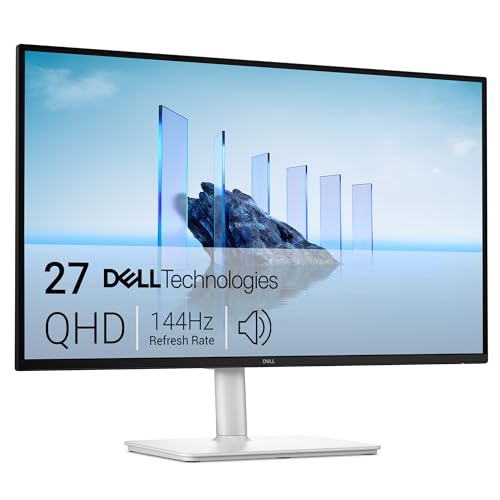
Two identical 27-inch 1440p IPS panels at eye level on arms. Identical colour, brightness and height minimise eye strain. It suits general office work, finance, admin and writing. A good candidate on Amazon UK is the Dell 27 Plus S2725DC (QHD, 144Hz, IPS, USB-C) at £237 (4.4 stars from 199 ratings), so a pair costs around £475.

2. Primary plus secondary
A 27-inch 4K USB-C primary monitor plus a cheaper secondary screen. It concentrates budget on the display you look at most and suits hybrid workers and laptop users. The Dell U2723QE (£550, 4.4 stars from 657 ratings) is our primary pick.

3. The vertical second screen
One monitor rotated to portrait, ideal for developers, writers, editors and anyone reading long documents. Use IPS panels for vertical use, since VA panels look poor off-axis.
4. The stacked setup
A vertical dual arm with one monitor above the other, primary at eye level and the upper screen for reference. Best for desks with limited width.
The hardware you need
Monitor arms
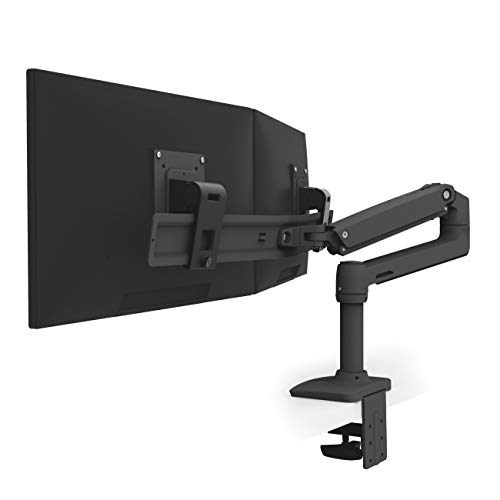
Included monitor stands are the enemy of a good dual setup. An arm aligns the screens, frees desk depth and lets you position each independently. The BONTEC dual monitor arm for 13–27-inch screens is £25.97 on Amazon UK, rated 4.5 stars from nearly 39,000 ratings, a proven budget choice. For a premium option, the Ergotron LX Dual is £205.83 (3.8 stars from 91 ratings).

Connections and docking
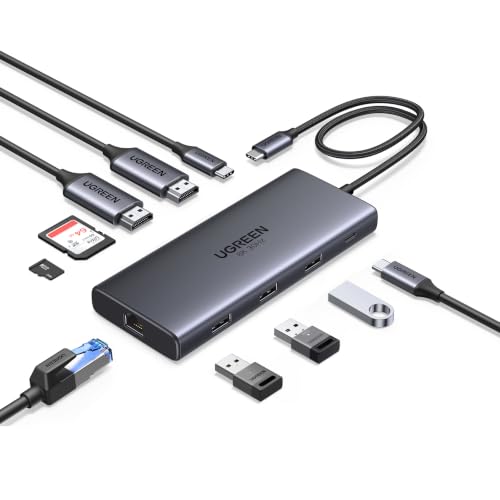
Check your device can drive two external displays before buying. A single USB-C or Thunderbolt laptop needs a USB-C dock or a daisy-chainable monitor (confirm DisplayPort Alt Mode), an HDMI plus USB-C laptop can run one display per port, and a desktop PC usually has spare graphics outputs. Some base-model MacBook Air machines are limited and may need a DisplayLink dock. A dual-4K USB-C dock consolidates power, two monitors, Ethernet and USB through one connector; the UGREEN 10-in-1 dual 4K@60Hz dock is £31.53 on Amazon UK (4.5 stars from nearly 3,900 ratings). Check your laptop’s specification against the dock’s claims.
Ergonomic guidelines
- The top of each screen should sit at or just below eye level.
- If one screen dominates, place it straight ahead.
- Both screens should be roughly an arm’s length away, angled slightly inward.
- Match the brightness of the two panels.
Common mistakes to avoid
- Buying displays your computer cannot drive.
- Relying on the included stands, which mismatches heights.
- Mixing resolutions so UI elements change size as you drag windows.
- Ignoring cable management.
- Cheap panels with poor off-axis viewing on a secondary or portrait screen.
Recommended setups by budget
Budget | Setup | Benefit |
~£350 | 27in 1440p + reused old monitor + dual arm | Budget-friendly productivity gain |
~£550 | Two matched 27in 1440p IPS + dual arm | Recommended all-rounder |
~£750 | 27in 4K USB-C primary + second screen vertical + arms + dock | Single-cable, coder-friendly |
£1,000+ | Two 27in 4K IPS + premium arms + Thunderbolt dock | Colour-matched, premium |
Verdict
For most people, the best dual-monitor setup for productivity is a matched pair of 27-inch 1440p IPS monitors on a dual arm, fed by a USB-C dock. If your budget is tight, start with a primary and a secondary and upgrade later. The arm is the cheapest component and it decides how comfortable the whole setup is.